

Optimize Your Patreon Website for Speed Security and Growth in 2026
Article
If you are a creator or small business owner, your Patreon website is probably your most important asset. But here is the thing: many people still treat their Patreon page like just another social profile. In 2026, that thinking can hold you back.
The creator economy is now worth over $234 billion, according to recent data from Behind the Scenes. Patreon itself has seen its active creator base grow 15% year-over-year, as reported by Fueler. More entrepreneurs and small businesses are making their Patreon page their main online home. But with that shift come real headaches.
Patreon has grown from a simple membership tool into a full website ecosystem.

You can host content, build a community, and sell products all from one place. That is great. But when your Patreon becomes your primary website, you start facing problems like slow load times, security worries, and difficulty handling traffic spikes. These issues can hurt your income and frustrate your supporters.
This guide covers the most common pain points for your Patreon website. We will walk through simple fixes for security, speed, scaling, and support. Plus, if you are thinking about building a separate backup site to strengthen your online presence, our web hosting template checklist for small business growth can help you plan it out.
A reliable hosting foundation makes a big difference. Many creators find that pairing their Patreon page with a provider like Prism Webhost helps solve speed and security issues before they become problems. Let us get your Patreon site running like a growth engine.
1. Understanding the Patreon Platform Architecture
Before we fix problems, we need to understand what we are working with. Your Patreon website is not like a standard site built on WordPress or another content management system. Patreon is what we call a hosted membership platform. That means you do not own the software or the server. Patreon provides everything through their own infrastructure.
Think of it this way. When you use a tool like the Patreon WordPress plugin to connect your Patreon to a separate WordPress site, you are bridging two very different worlds. WordPress gives you full control over files, plugins, and design. Your Patreon page gives you convenience but less flexibility.
The Four Main Parts of Your Patreon Website
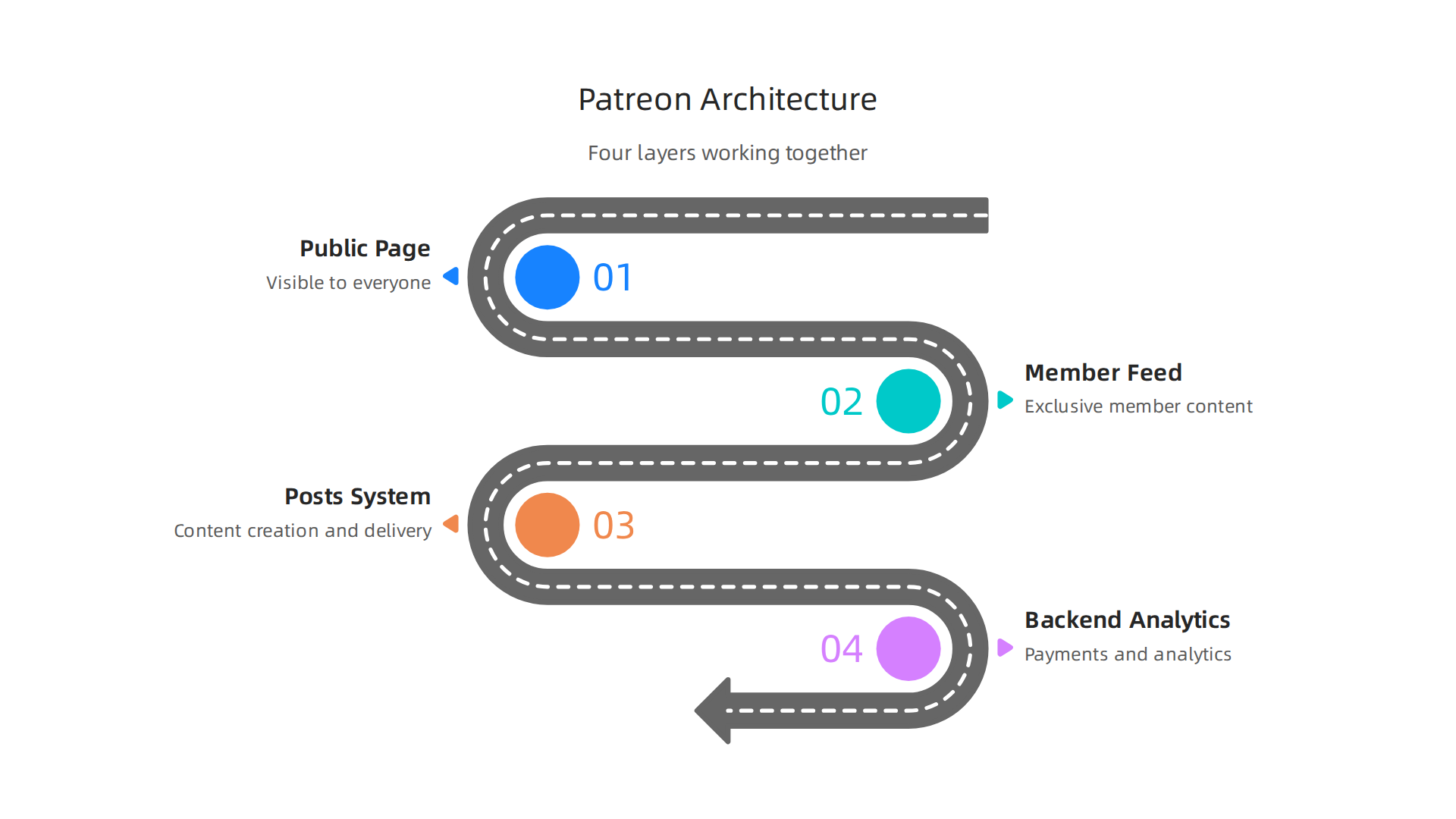
Your Patreon page actually has four layers working together:
-
Public page. This is what visitors see before they sign up. It includes your profile, membership tiers, and teaser content. This page acts like your storefront. If it loads slowly or looks messy, people leave before joining.
-
Member-only feed. This is a private space where your paying supporters see exclusive posts. Patreon controls how this feed looks and behaves. You cannot customize it the way you can with a self-hosted site.
-
Posts system. Every time you publish content, Patreon stores it on their servers. You can set posts as public, patron-only, or tier-specific. The system handles access control for you.
-
Backend analytics and payout tools. This includes your dashboard for tracking earnings, managing members, and requesting payouts. You do not see this part, but it runs the business side of your patreon website.
Why This Architecture Matters to You
Here is the real takeaway. Knowing how your Patreon page works helps you decide what belongs on Patreon and what belongs on your own site.
For example, if you want to build a full brand presence with detailed product pages or a blog that ranks in Google search, you might pair Patreon with a separate website. Many creators use Patreon for the membership layer while running a companion site for public content and SEO. A comparison by Uteach explains that Patreon fits artists and influencers best, while WordPress suits small businesses with a growing audience.
When you understand the architecture, you stop treating your Patreon page like a one-size-fits-all solution. You start using it for what it does best, which is managing memberships and recurring revenue. Everything else, like detailed product pages, portfolio galleries, or search-optimized blog posts, can live on a site you fully control.
This is where choosing the right hosting partner becomes valuable. A provider like Prism Webhost gives you the speed and security you need for that separate website. Plus, if you are planning a companion site, our web hosting template checklist for small business growth walks you through the setup step by step.
In the next section, we will look at the most common security risks patreon website owners face and how to lock them down.
2. Step-by-Step: Setting Up Your Patreon Page from Scratch
Now that you understand how your Patreon page works, it is time to build it. The setup process is simpler than you think, but you need to make smart choices from the start. A well-structured page turns visitors into paying supporters.

A messy one sends them away.
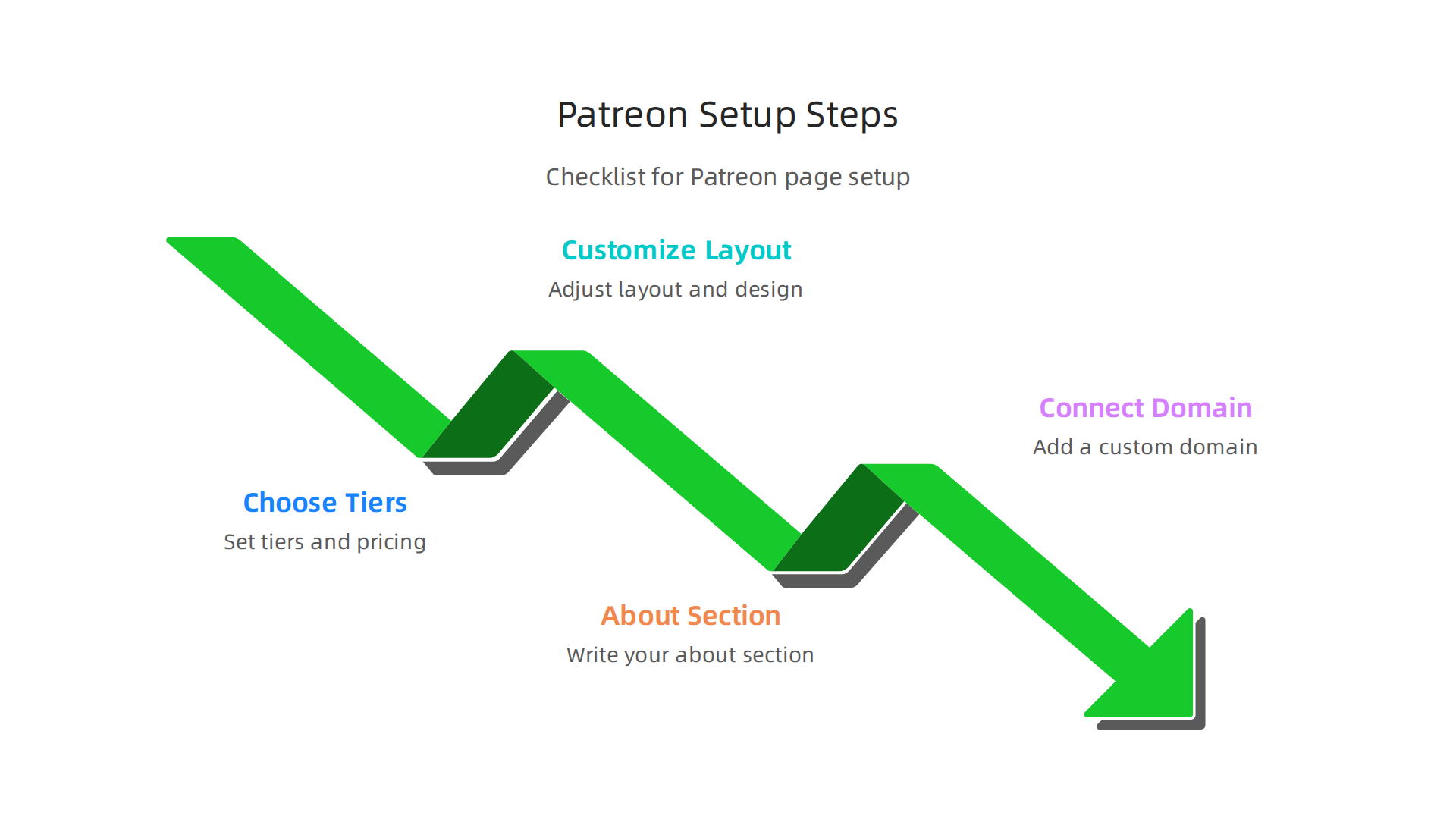
Step 1: Choose Your Membership Tiers and Pricing
This is the foundation of your whole Patreon website. Your tiers decide what people get and how much they pay.
Do not rush this part.
Start by asking yourself: What value can I offer at different support levels? Most creators use three to five tiers. A common structure looks like this:
- $1 tier – A simple thank you and early access to public posts. Great for showing appreciation.
- $3 tier – Exclusive content like behind-the-scenes updates, bonus videos, or written extras.
- $5 tier – Full access to all patron-only posts, plus a monthly live stream or Q&A.
- $10 tier – Everything above plus a monthly digital download, like a wallpaper or printable.
- $25 tier – A physical reward, like a sticker pack or signed print.
Check Patreon’s Launch Checklist to see what details you should have ready before you go live. The key is to make each tier feel valuable without overpromising.
For example, if you run a fanfiction net website or write stories, your $3 tier might offer sneak peeks of upcoming chapters. If you run an rsvp website for events, your $5 tier could include early event access.
Pricing matters. If you charge too little, you burn out. If you charge too much, nobody joins. Look at what similar creators charge and start in the middle.
Step 2: Customize Your Page Layout, Cover Image, and About Section
Your Patreon page is your storefront. Make it match your brand. Patreon lets you customize its look and feel so fans see who you are right away.
Start with a clear profile photo. Use your face or a logo. Add a cover image that shows your work. This is the first thing visitors see.
Next, write your about section. Keep it short. Explain what supporters get and why you need their help. Use bullet points for the main benefits.
Make sure your page layout highlights your best content. You can reorder sections to show top posts first. This is where brand consistency matters. Use the same colors and style you use on your patreon website or other social channels.
Step 3: Link Your Patreon Page to a Custom Domain
A custom domain makes you look professional. Instead of patreon.com/yourname, you can use yourname.com. Patreon now lets you connect a custom domain directly to your page.
You buy a domain from a registrar. Many people use a godaddy website for this. But remember, a domain is just an address. The real power comes when you pair your Patreon with a full website you control.
That is where our Prism Webhost hosting comes in. You get a fast, secure place to build a companion site for blog posts, portfolios, or product pages. Your Patreon handles memberships. Your own site handles everything else.
If you need help choosing a domain name, check out our guide on the website domain definition every small business owner needs. It breaks down the basics in plain language.
Setting up your Patreon page right from the start saves you headaches later. Take your time with tiers, customize your brand, and secure a custom domain. Your future supporters will thank you.
In the next section, we will look at the most common security risks patreon website owners face and how to lock them down.
3. Customizing Your Patreon Website for Brand Consistency
You already set up your Patreon page. Now it is time to make it feel like you. Brand consistency builds trust. When your Patreon page matches your main website, your fans know they are in the right place. Here is how to pull it all together.
Start with Patreon’s Built-in Customization
Patreon gives you a few solid tools to control the look and feel. You can change your profile photo, cover image, and page layout. The goal is to match the colors, fonts, and style you use everywhere else.
Start by uploading a clear profile photo. Use your face or your logo. Add a cover image that shows off your work. Patreon’s support team says you can customize its look and feel at any time, so it reflects your brand. That is a good safety net if you want to tweak later.
Next, write your about section. Keep it short. Tell people what they get and why you need support. Use bullet points for the main benefits. Think of this as your elevator pitch.
Patreon also lets you connect a custom domain to your page. Instead of patreon.com/yourname, you can use yourname.com. That alone makes you look more professional.
Sync Your Patreon Page with Your Main Website
Patreon is great for memberships, but it is limited for full branding control. You cannot change much beyond basic colors and images. That is where your own website comes in.
Your main website acts as your home base. You can add widgets or embed links that send visitors from your site to your Patreon page. Common ways to do this:
- Add a "Support on Patreon" button on your site’s header or sidebar.
- Embed a Patreon widget that shows your latest posts or goal progress.
- Use a link-in-bio platform like Linktree or Beacons to point people to both your website and Patreon.
The trick is to use the same logo, colors, and tone everywhere. If your website uses a navy blue header and a specific font, carry that over to your Patreon page. Consistency makes you look serious.
Build a Cohesive Visual Identity
Maintaining a cohesive look across Patreon and your own site takes a little effort. But it pays off. Here is a quick checklist:
- Use the same profile photo on both platforms.
- Match your cover image style. If your site has a banner with your tagline, use a similar banner on Patreon.
- Keep your color palette the same. Pick two or three core colors and stick to them.
- Use the same logo everywhere.
If you are building a companion website for your Patreon, you need reliable hosting. Many creators use a godaddy website for domains, but that is just the address. The real engine is the hosting. Our Prism Webhost hosting gives you fast, secure infrastructure to run your site. You get free SSL, NVMe SSD storage, and 24/7 support. That way your main website never slows down, even when traffic spikes after a new Patreon post.
Need help picking the right domain for your site? Check out our guide on the website domain definition every small business owner needs. It explains the basics in plain English.
Brand consistency is more than just good looks. It tells your supporters you are serious about your work. Take the time to sync your Patreon page with your own site, and your community will feel right at home.
4. Integrating Patreon with Your Existing Website and Hosting
Once your Patreon page looks and feels like your brand, the next step is to connect it to the website you already run. Many creators use WordPress, Shopify, or a custom HTML site as their main home base. The goal is to make your Patreon membership features work smoothly with that existing setup.
Use the Patreon WordPress Plugin
If your main site runs WordPress, you are in luck. Patreon offers a free plugin that lets you bring Patreon features directly into WordPress. With the Patreon WordPress plugin, you can import your Patreon posts, protect content for members only, and sync your supporter list. Patreon’s own support guide walks you through the steps: connect your WordPress site to Patreon. Just install the plugin, activate it, and link your Patreon account. It handles the OAuth login flow for you.
Do not run WordPress? No problem. You can still integrate using Patreon’s API or embed widgets. Services like Patreon’s “Membership Widget” let you place a sign-up button on any site. You copy a snippet of code and paste it into your HTML. That works for Shopify, Squarespace, or a custom-built page.
Watch Out for Common Technical Hurdles
Integrating two platforms can bring a few headaches. Here are the main ones and how to fix them.
Domain mapping. You already set up a custom domain for your Patreon page. But if your main website uses a different domain, you need to keep the two separate. Avoid confusing visitors by using clear labels. For example, put a “Members Area” link on your main site that goes to your Patreon custom domain.
SSL certification. Both Patreon and your own site need valid SSL certificates. Patreon handles its own SSL automatically. Your own site needs one too. The good news is that most modern hosting includes free SSL. Our Prism Webhost plans come with free SSL on every account, so your visitors get that padlock icon without extra work.
Performance and speed. When you connect Patreon to your site, your server might need to handle extra API calls or embedded widgets. That can slow things down if your hosting is weak. In 2026, performance is critical. Hosting experts warn that you need to benchmark your hosting first before spending time on other tweaks. A slow site hurts your SEO and frustrates supporters.
If your hosting is holding you back, consider upgrading to a provider that uses fast NVMe SSD storage and LiteSpeed servers. Our hosting at Prism Webhost is built for speed and comes with unlimited subdomains, so you can run your Patreon integrated site without lag.
Keep Your Whole Setup Consistent
Once you integrate Patreon with your main website, remember the brand consistency tips from the previous section. Use the same colors, fonts, and logos on both sides. If you need help choosing the right domain for your main site, our guide on the website domain definition every small business owner needs explains the options.
Integrating your Patreon website with your existing hosting takes a little planning, but it pays off. Your fans get a seamless experience. You get more control. And your membership community grows stronger because everything works together.
5. Navigating the Patreon Backend: Analytics, Membership Management, and Payouts
So you set up your Patreon website, connected it to your hosting, and your first supporters are rolling in. Now what? The real work happens in the backend. You need to track how you are growing, manage your members, and get paid. Let us walk through the three main areas.
Use Analytics to Understand Your Growth
Patreon gives you a built-in Insights dashboard.

It shows you how many members you have, how much money you earn, and how people interact with your posts. The data updates every four hours. You can see trends over time and spot which membership tiers are most popular. Patreon’s own help center explains how to use Insights dashboards to understand your earnings and member behavior.
Want more detailed data? Some creators use a third-party tool like Creator Metrics. It gives you deeper reports on supporter behavior and community trends. But the built-in dashboard is enough for most people starting out.
Manage Your Membership Tiers and Communication
Your Memberships dashboard is where you handle the day-to-day. You can see who signed up, who canceled, and who had a failed payment. Patreon’s Membership Insights page shows all that info. If a payment fails, the system gives the member a few days to fix it before removing access.
You can also manage your tiers right from this area. Add new benefits, change pricing, or rearrange what you offer. For example, if you want to update what a $5 tier includes, you do it here. Members can upgrade or downgrade anytime. Patreon explains how members change tiers so you know what to expect.
Communication is key too. Use the built-in messaging tool to send updates or welcome new patrons. Polls are another great way to keep your community engaged.
Understand Payouts, Fees, and Taxes
This is where many new creators get confused. Patreon pays out once a month, usually around the fifth. The platform takes a cut. On the basic plan, Patreon charges 5% plus payment processing fees. Those processing fees run about 2.9% plus $0.30 per transaction for most creators. A full breakdown is available in the Patreon pricing guide for 2026.
You also need to think about taxes. In many countries, you must report your Patreon income. Patreon does not withhold taxes for you. Keep good records from day one. Download your payout reports every month.
The backend of your Patreon website controls your whole business. Spend time learning it. And remember, the faster and more reliable your hosting is, the smoother everything runs. A slow site can hurt your analytics and member experience. For a setup that handles all this without lag, check out Prism Webhost. Their fast NVMe SSD storage and LiteSpeed servers keep your integrated website and Patreon backend running strong. If you want a step-by-step hosting plan, our web hosting template checklist for small business growth in 2026 can help you build a solid foundation.
6. Security and Performance Best Practices for Your Patreon Page
Your Patreon page is live. Supporters are coming in. But now you need to make sure it stays safe and fast. A slow or hacked page can drive members away. Here is what you need to know about security and performance in 2026.
Security: It Is Not All on Patreon
Patreon handles a lot of security on its end. They encrypt payments, protect user data, and have a security team. But you still have responsibilities. The biggest risks are phishing, weak passwords, and DDoS attacks.
Phishing is when someone pretends to be Patreon to steal your login info. Never click links in suspicious emails. Always go directly to Patreon’s site. Use a strong, unique password and turn on two-factor authentication.
Another sneaky risk is your webhook settings. A security report from early 2026 found that a blank webhook secret could let attackers send fake data to your page. Make sure your webhook secret is set correctly. Patreon also has a security reporting page where you can report issues.
If you have a separate website linked to your Patreon page, that site can be a weak point. DDoS attacks can take your site down, which hurts your brand. Use a Content Delivery Network (CDN) to block these attacks. Fast hosting with DDoS protection helps a lot.
Performance: Speed Keeps Members Happy
Your Patreon page needs to load fast. If it takes more than a few seconds, people leave. That means lost income. The same is true for any external website you link.
Three things slow down a page: big images, slow servers, and too many plugins. Compress your images before uploading. Use a tool like TinyPNG or your host’s optimizer.
Your server response time matters a lot. If your hosting is on slow old drives, your site will crawl. You need modern infrastructure. That is where a good host like Prism Webhost comes in. They use NVMe SSD storage and LiteSpeed servers. That means your pages load in a flash. They also offer 17Tbps+ DDoS protection, so your site stays up.
Many creators make the mistake of cheap hosting. Then their site crashes during a big launch. Learn from others. Read about hosting mistakes that crash websites and avoid them.
Keep Your Patreon Website Secure and Fast
Here is a simple checklist:
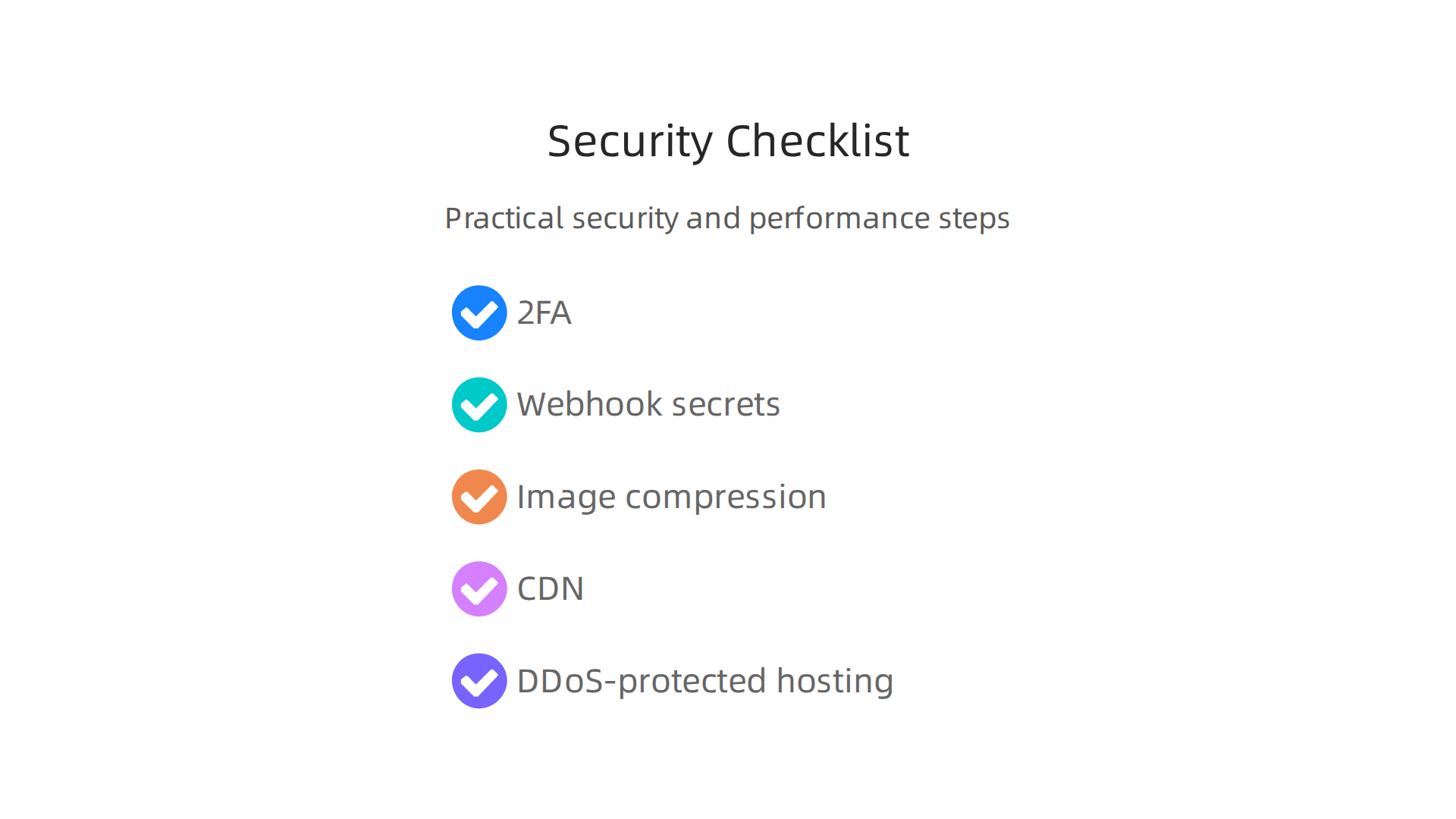
- Use two-factor authentication on your Patreon account
- Set a strong webhook secret
- Compress images and videos before posting
- Pick a fast, secure hosting provider for any linked website
- Use a CDN for extra DDoS protection
Your Patreon website is your business. Treat it like one. Spend the time now to lock it down and speed it up. Your supporters will thank you.
7. Scaling Your Patreon Presence with the Right Hosting and Support
So your Patreon website is growing. New members are joining every day.

That is great news.
But here is the thing. Growth puts pressure on your setup. More members mean more downloads, more video streams, and more comments. Your bandwidth usage goes up. Your storage fills up. And the questions keep coming.
If you are using basic hosting for your linked website, it will slow down or crash. You do not want that. A crash during a big launch can cost you trust and income. Actually, many creators learn this the hard way. You can read about hosting mistakes that crash websites to avoid their fate.
Choosing a Host That Grows With You
You need a hosting provider built for scale. That means:
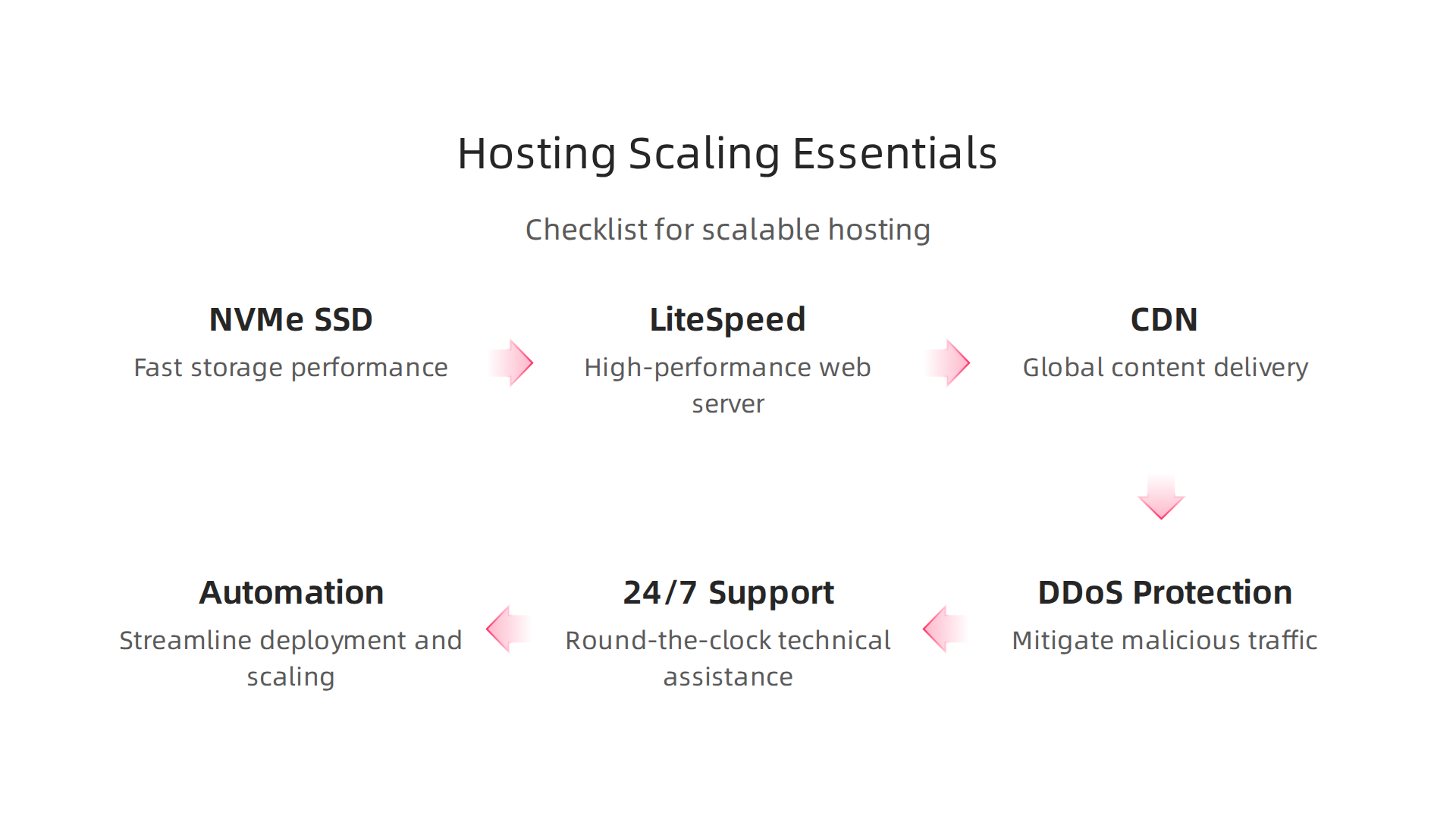
- NVMe SSD storage for fast data access
- LiteSpeed servers for quick page loads
- A CDN to serve content globally
- DDoS protection so bad actors cannot knock you offline
- 24/7 support when things go wrong at 2 AM
This is where Prism Webhost fits in perfectly. They offer all of this out of the box. Your site stays fast, safe, and online even when traffic spikes. And if you have questions, their support team is there around the clock.
When you are ready to plan your growth, use a web hosting template checklist for small business growth in 2026. It helps you make sure nothing slips through the cracks.
Automate the Boring Stuff
Manually welcoming every new member or updating your website is a waste of time. Automate it.
Patreon has built-in integrations. You can connect your page to Discord, WordPress, or Mailchimp. This way, when someone pledges, they get instant access. No work on your end.
There are also tools to check the health of your services. If you run an online brand or community, knowing how to check Epic Online Services status to prevent downtime or monitor your own uptime is a smart move.
For a full list of settings to tweak before you grow, check out the official Patreon Launch Checklist.
Your Patreon Website Is a Business Asset
Treat it like one. As you scale, invest in the infrastructure that supports your community. A fast, reliable, and automated Patreon website lets you focus on creating great content. Your members will notice the difference.
Summary
This article explains how creators and small businesses should treat their Patreon page as a business asset rather than just another social profile. It walks through Patreon’s platform architecture, how to set up effective membership tiers and a branded storefront, and when to pair Patreon with a companion website and custom domain. You’ll learn practical integration options—like the Patreon WordPress plugin or widgets—plus common technical hurdles such as SSL, domain mapping, and webhook security. The guide also covers backend tasks (analytics, membership management, payouts), performance tips (image optimization, modern hosting), and scale-ready hosting features to avoid crashes during growth. By following these steps you’ll be able to build a faster, more secure Patreon presence, keep branding consistent across platforms, and plan the hosting and automation needed to grow your membership business.