

How to Perform a Website Host Lookup and Identify Your Host in Seconds
Article
Introduction
Every second your website is down, you are losing money. It sounds dramatic, but the numbers back it up. In 2026, the average cost of IT downtime for a small or mid-sized business can range from as low as $137 per minute in basic labor costs to well over $1,000 per minute when you factor in lost sales and damaged reputation.
One study estimates that IT downtime costs SMBs anywhere from $5,000 to $50,000 per hour, depending on the industry. Another source puts the average closer to $8,000 per hour, with some small businesses reporting costs over $100,000 per hour after major outages. No matter which number you look at, the bottom line is clear: downtime hurts.
But here is the surprising part. Many business owners do not even know who hosts their website. They signed up years ago, forgot the login details, and now have no idea where their site actually lives.

When something breaks, they panic. They do not know who to call or where to start troubleshooting.
That is where a website host lookup comes in.
Running a quick host lookup tells you exactly which company hosts your site. It gives you the information you need to contact support, check for outages, or plan a move to a better provider. It is the very first step toward fixing slow speeds, security gaps, and reliability problems.
Without knowing your host, you are flying blind. With a simple lookup, you gain back control. And when it is time to choose a stronger foundation for your business, reliable infrastructure from a trusted partner makes all the difference. Once you know who is handling your hosting, you can actually start fixing what is broken.
Why Website Host Lookup Matters: The Hidden Costs of Not Knowing Your Host
Not knowing who hosts your website is a lot like driving a car with a blindfold on. You might get where you are going for a while, but eventually something will hit you.
And when it does, the hidden costs start piling up fast.
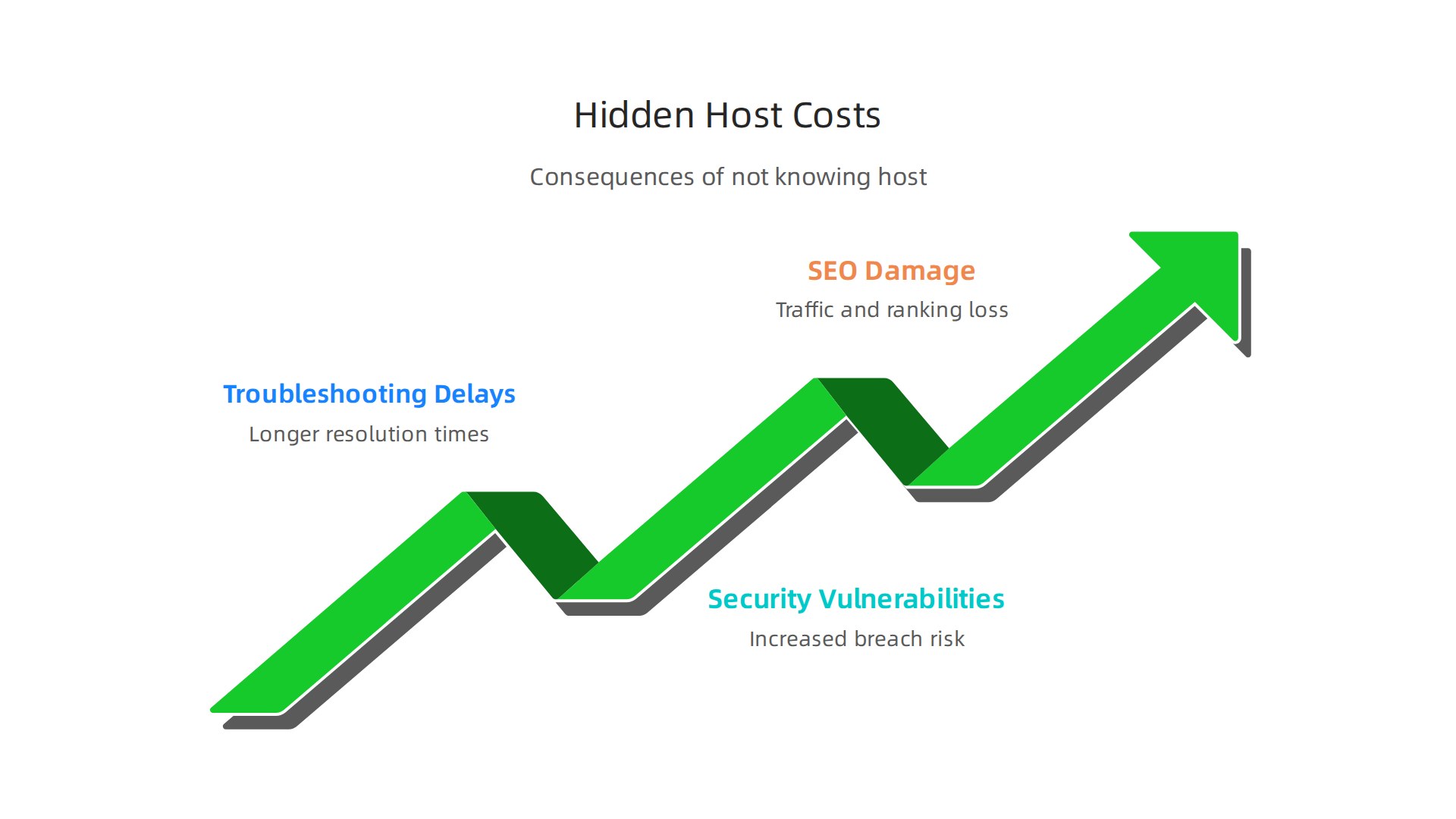
Let us look at the first big cost: troubleshooting delays. When your site goes down, every minute counts. In 2026, the average cost of IT downtime for a small business can range from $137 to over $1,000 per minute, depending on your industry and how much you rely on digital tools The True Cost of IT Downtime for Small Businesses in 2026. If you do not know your host, you waste precious time just trying to figure out who to call. Instead of fixing the problem in 10 minutes, it might take an hour. That lost time directly hits your bottom line.
The second hidden cost is security vulnerability. A good host protects you with tools like DDoS protection, firewalls, and regular security patches. But if you do not know who you are with, you cannot check if they offer these protections. You could be sitting on a host that has weak security, leaving your site open to attacks. Tools like a website host lookup can also help you check your IP reputation. A bad IP reputation can land your domain on blacklists, which hurts your email deliverability and makes your site look suspicious Server Reachability Challenges Tied to IP Reputation in 2026.
The third cost might surprise you: SEO damage. Google cares a lot about your server location and loading speed. If your host is far away from your main audience, your pages load slower. Slow pages rank lower. And if your host is unreliable, your site might be offline when Google bots come to crawl it. Not knowing your host means you cannot even start fixing these performance issues. You might need to ping website or view cached version of website to troubleshoot, but without knowing your host, those steps are less effective.
Here is the thing. The cost of not knowing is not just money. It is also stress, lost customers, and a damaged reputation. But you can avoid all of this with one simple step: a website host lookup. Once you have that info, you can check your host’s uptime record, security features, and server locations. If you find out your current setup is weak, you can explore options like self hosting website with a reliable provider.
Cut the blindfold. Know your host. And if yours does not measure up, consider moving to infrastructure that actually supports your growth, like what Prism Webhost offers with enterprise-grade security and a 99.99% uptime guarantee.
How to Perform a Website Host Lookup (Step-by-Step)
By now, you know exactly why you need to cut that blindfold and identify your web host. But how do you actually do a website host lookup?
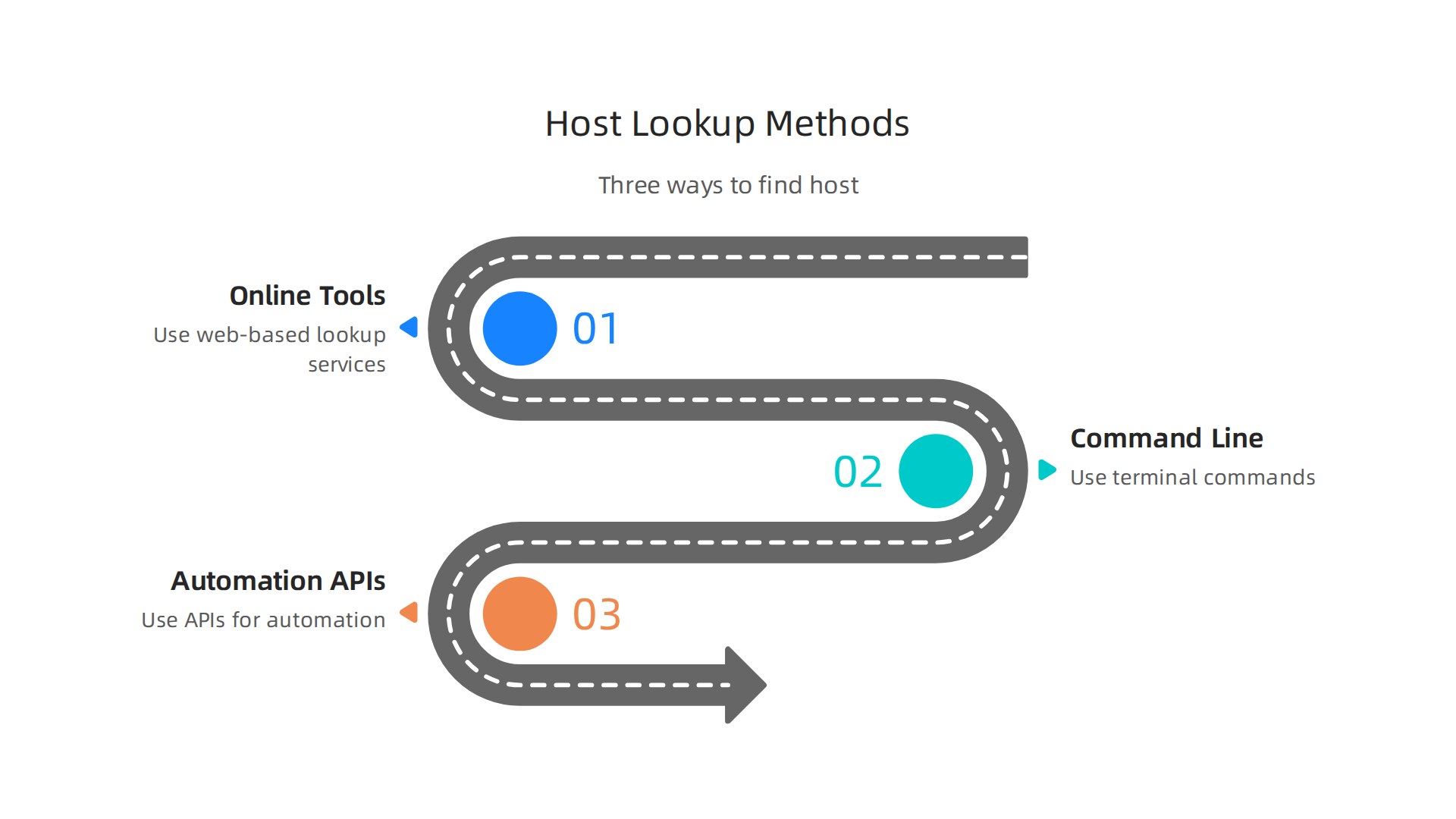
The good news is that it is not hard at all. In fact, you have three solid ways to get the answer. Let me walk you through each one, from the easiest to the most technical.
Method 1: The Easy Way (Online Tools)
This is the fastest method for anyone who does not want to mess with code or command prompts. Just visit a free online tool and type in the domain name.
- What to use: Sites like WhoIsHostingThis, HostAdvice, or a basic WHOIS lookup.
- How to do it: Enter your website URL. The tool scans the domain’s DNS records and tells you the hosting company.
- Why it works: Most hosting providers leave a digital fingerprint in the nameservers. Tools read these fingerprints for you Network Solutions Guide.
For most business owners, this method is all you will ever need. It takes about 10 seconds.
Method 2: The Accurate Way (Command Line)
If you want to be absolutely sure, or if the online tool fails to find a result, you can use your computer’s command line. This is also a great way to check things like server location and IP reputation when you need to ping website addresses or perform a deeper audit.
- What to use: The terminal (Mac/Linux) or command prompt (Windows).
- How to do it:
- Open your terminal.
- Type
dig yourdomain.com NSand press enter. This shows the nameservers (likens1.hostinger.com). - You can also type
whois yourdomain.comto get the full registration and hosting details GreenGeeks Guide.
- Why it works: These commands go straight to the DNS source, bypassing any user interfaces or cached data EuroDNS Guide.
This method gives you the raw truth. It is super reliable.
Method 3: The Developer Way (Automation)
If you manage multiple sites or need to check hosting details often, APIs can automate your website host lookup process. This is useful for keeping an eye on competitors or managing a portfolio of client websites.
What to Do After You Find Your Host
Once you have the name of your host, the real work begins. You need to check if they are actually good. Are they fast? Are they secure? Do they offer good support?
If your current host fails the test, or if you simply want a setup that "just works," you should look for a provider that values transparency and performance. A reliable host handles the heavy lifting so you do not have to worry about crashes or hackers.
If you are considering a change, check out our comparison of the best web hosting services in 2026 to see what features actually matter.
And if you want a hosting partner that offers enterprise-grade security, blazing fast NVMe SSD storage, and a 99.99% uptime guarantee without the enterprise price tag, see what we offer at Prism Webhost. We believe hosting should be powerful and simple, giving you one less thing to worry about.
Top 5 Website Host Lookup Tools Compared (2026)
You now know how to find a host manually. But using a dedicated website host lookup tool can save you even more time. Some tools go beyond just naming the host. They show you server location, security flags, and even cached content.
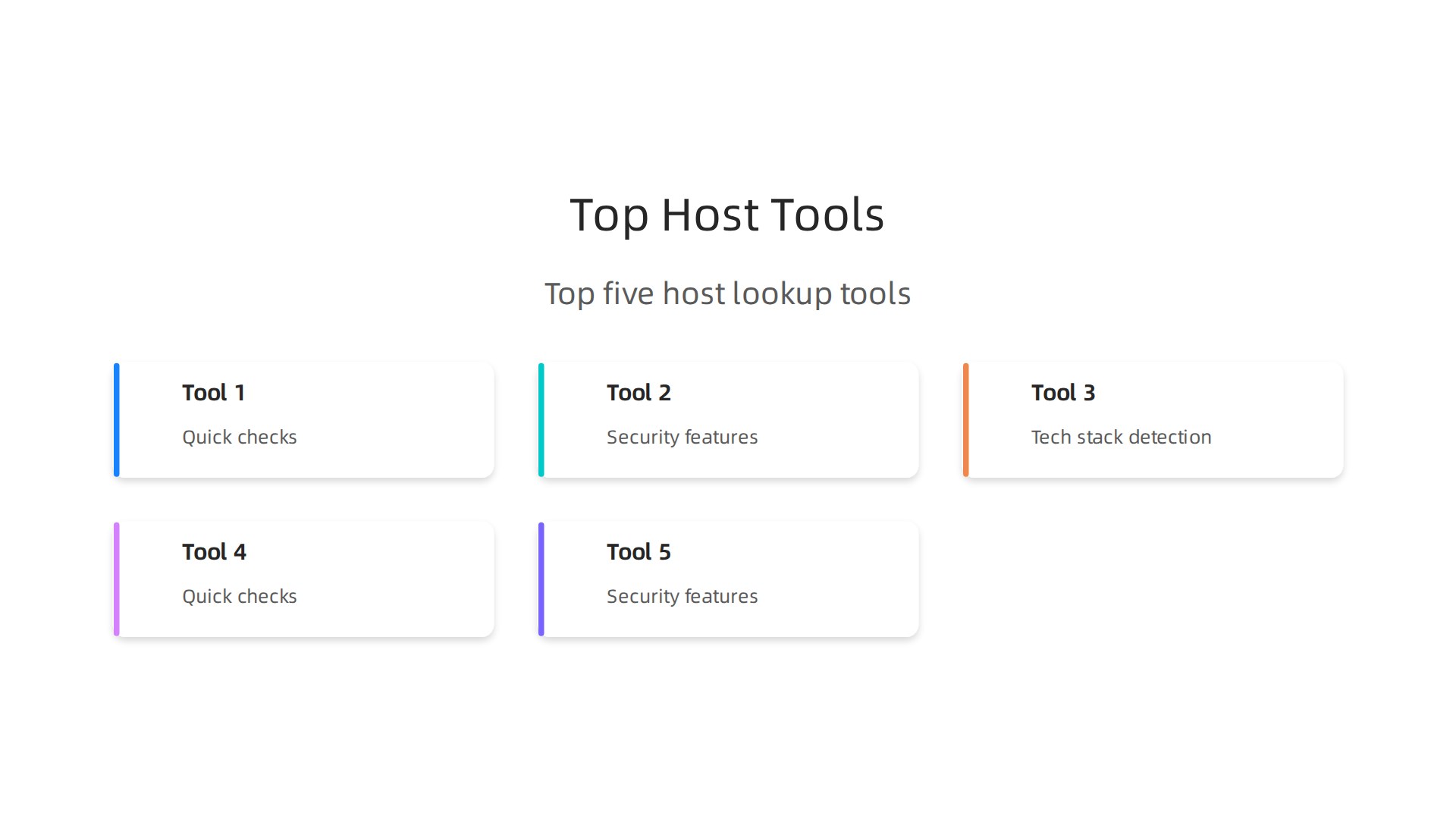
Here are five of the best tools you can use right now.
1. WhoIsHostingThis – Best for Features and Pricing
This is the most popular free tool for a reason. You type in a URL and within seconds it shows you the hosting provider, IP address, and nameservers.

It also suggests cheaper or better alternatives. That makes it useful if you are comparing costs after your lookup. The tool is completely free, and you do not need an account. According to a roundup of the best domain search tools, this kind of tool works by reading DNS records that hosts leave behind Instant Domain Search Guide.
Best for: Quick checks and budget comparisons.
2. WhatIsMyIP / IPLocation – Best for Accuracy and Speed
If you want the raw truth fast, these DNS lookup tools are your friends. They query the nameservers directly and show you the exact hosting company and server city. The results update in real time, so you get current data. You can also use them to ping website addresses and check response times. That is helpful when you are trying to decide if your host is slow or just far away.
Best for: Speed tests and server location checks.
3. SecurityTrails – Best for Security Analysis
This tool is built for deeper investigations. It does a standard host lookup, but it also shows you historical DNS data, SSL certificate details, and potential security risks. If you suspect your site has been moved to a bad host or if you want to check a competitor’s security setup, this is the tool to use. It can even show you whether a site is running a self hosting website setup or using a managed platform.
Best for: Security audits and threat research.
4. BuiltWith – Best for Tech Stack Detection
BuiltWith does not just tell you the host. It tells you everything a website is built with: the CMS (like WordPress), the server software, analytics tools, and even the CDN.
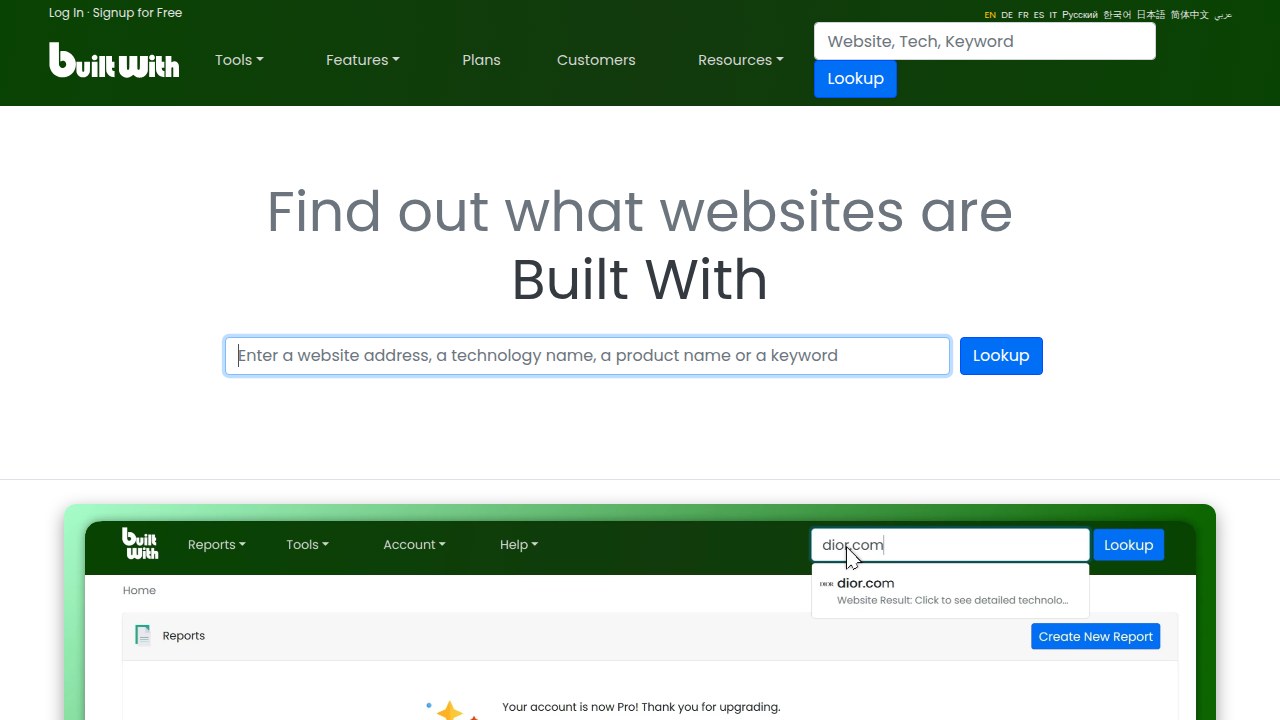
This is useful if you want to see if a site is using localhost/wordpress development locally versus a live setup. It can also reveal if a site is using outdated software, which is a big security red flag.
Best for: Technology research and competitive analysis.
5. Google Cache / Archive.org – Best for Checking Cached Versions
Sometimes a site is down or has changed hosts, and you need to see what it looked like before. Both Google Cache and the Wayback Machine let you view cached version of website pages. The cached version often includes HTTP headers that reveal the old hosting provider. This is a lifesaver when the live site is unreachable.
Best for: Recovering historical data and diagnosing migration issues.
Which Tool Should You Pick?
It depends on your goal. If you just need the host name fast, go with tool 1. If you care about security, go with tool 3. If you want a full picture of a competitor, tool 4 is your best bet.
Once you have identified your host, the next step is to evaluate whether they are actually delivering on performance and security. If your current host comes up short, it might be time to switch to a provider that offers enterprise-grade protection and speed. A host like Prism Webhost gives you NVMe SSD storage, LiteSpeed servers, and 99.99% uptime without the hidden fees. That way, your next website host lookup will show you a name you can trust.
And if you want to learn more about what makes a good host, check out our guide on web hosting cost in 2026 so you never overpay again.
Essential Host Management Tools Beyond Lookup
A basic website host lookup tells you the provider name and server location. But that is just a snapshot. To really know if your host is good, you need to dig deeper over time.
You need tools that watch your site constantly. Think of these as your maintenance crew. They catch problems before your visitors do.
Here are three types of tools that go far beyond a simple lookup. They help you manage your host, not just find it.
1. Uptime Monitors (The Watchdogs)
Uptime is everything. If your site is down, you lose money and trust. Uptime monitors check your site every few minutes from around the world.
Tools like Pingdom and UptimeRobot are the standard. You can use them to ping website addresses from different locations. That tells you if a server issue is local or global.
If your website host lookup shows a provider with cheap pricing, an uptime monitor will quickly reveal if you are getting what you paid for. Frequent alerts mean a bad host. As a helpful guide on web hosting points out, ongoing maintenance is what keeps a small business site competitive NetNerd.
2. Performance Testers (The Speed Coaches)
Speed impacts SEO and user experience directly. A slow site drives people away.
GTmetrix and WebPageTest are free tools that show you exactly what is slowing you down. They break down server response time, image sizes, and code issues.
Here is a common problem. You build a fast site locally using localhost/wordpress development. It flies on your computer. But once you upload it to your host, it crawls. A performance tester proves the host is the bottleneck. A slow host drags everything down, no matter how clean your code is.
3. Security Scanners (The Health Inspectors)
Hackers target small sites all the time. A security scanner checks your site for malware, blacklists, and dangerous code.
Sucuri SiteCheck is a free option that works well. It scans your live site and can even view cached version of website pages to find threats that lurk in stored data.
If you run a self hosting website, you carry the security load. Regular scans are not optional. They are essential. A clean scan means your host is keeping the server safe. A dirty scan means you need to leave fast.
Putting It All Together
A single website host lookup gives you a name. But combining uptime monitors, performance testers, and security scanners gives you the truth.
If your monitoring tools keep showing problems, it is time for a change. Do not settle for a host that requires constant firefighting. Switch to one that handles the heavy lifting for you.
Instead of reacting to alerts, choose a provider built for speed and security from day one. A host like Prism Webhost gives you the strong foundation your business deserves. For more help choosing the right provider, read our detailed web hosting services reviews for 2026.
Interpreting Host Lookup Results: What to Check
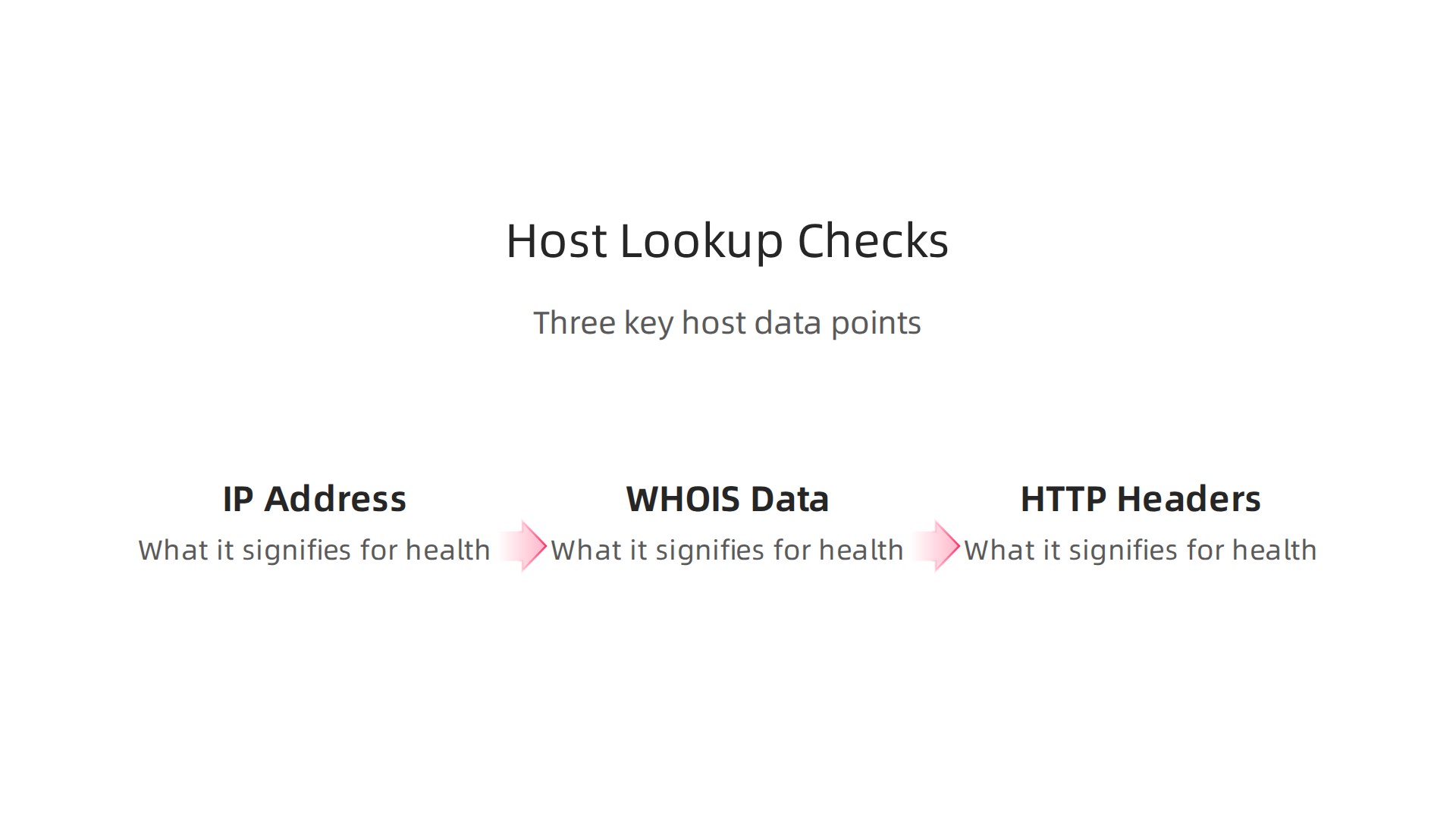
So you ran a website host lookup and now you have a pile of raw data. IP addresses, WHOIS records, and technical headers. What does it all actually mean for your site’s health?
Let’s break down the three most important pieces of data. These tell the real story about your host.
The IP Address: Your Host’s ID Card
The IP address is the most direct clue. It points straight to the server where your site lives. Here is how to read it.
First, look up the host name associated with that IP. You can use a reverse IP lookup tool to see all the websites sharing that same server HackerTarget. If your site shares an IP with dozens of spammy or slow sites, that is a red flag.
Next, check the server location. An IP geolocation tool like ipstack reveals the physical city and country of the server ipstack. If your audience is in London but your server is in Singapore, expect slow load times. The distance adds latency.
Think about it this way. When you ping website addresses from your location, you get a response time. If that time is high, the server is far away. Not ideal for user experience.
WHOIS Data: The Registration Paperwork
WHOIS records show who registered the domain and when it expires. You can start with a WHOIS lookup to find the registrar and nameserver details EuroDNS. The registrar is the company you bought the domain from. The nameserver tells you who handles DNS.
Look for a recent expiration date. A domain that expires in a few months might indicate a neglected site. Also check if the domain uses privacy protection. Many hosts hide the owner’s contact details. That is normal for small businesses.
But here is the thing. WHOIS data only reveals the domain host, not always the web host. If those two are different, you need to dig deeper using DNS records. A good guide explains how to use the "dig" command to find authoritative nameservers for that exact purpose GreenGeeks.
HTTP Headers: The Server’s Secret Menu
When your browser requests a page, the server sends back headers. These headers contain critical information about the server software and configuration.
Use a tool like BrowserLeaks to view the full HTTP request headers for your site
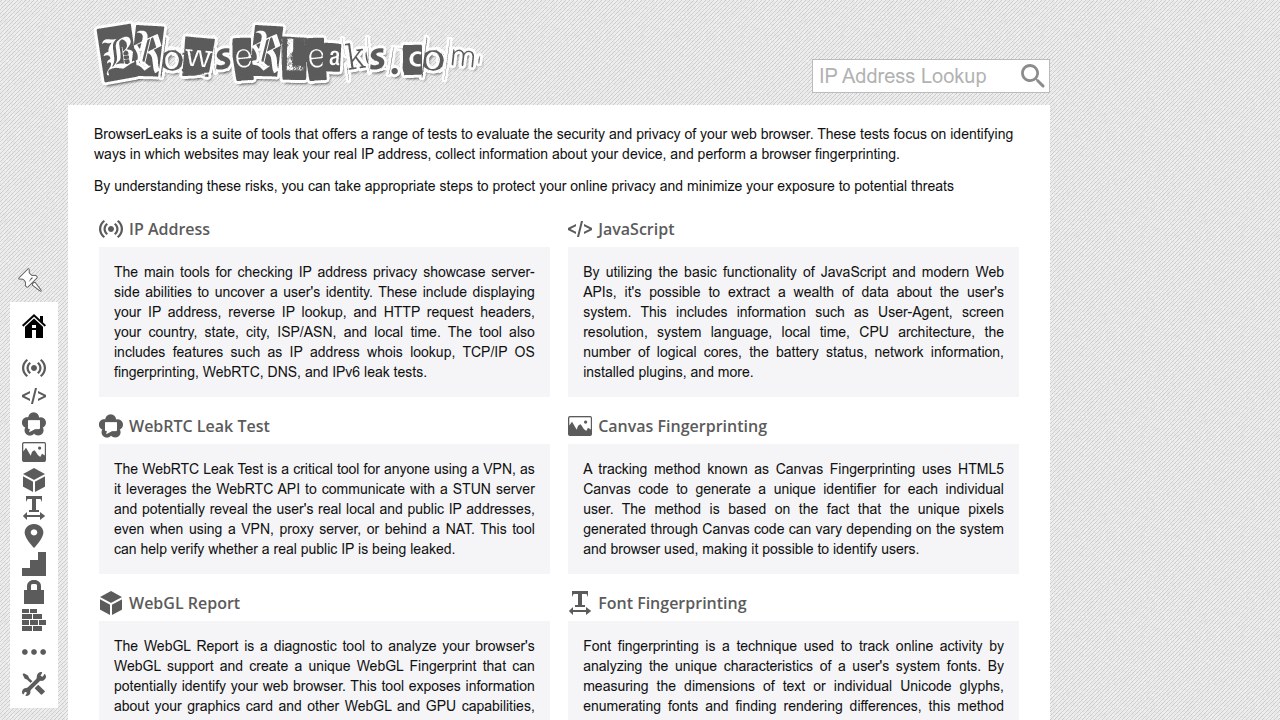
BrowserLeaks. Look for these signals:
- Server type: Should show a modern server like LiteSpeed, Nginx, or Apache. An old or custom server name might mean outdated software.
- Caching headers: Headers like "Cache-Control" and "Expires" tell you how the server handles static files. Good caching means faster repeat visits.
- Security headers: Look for "Strict-Transport-Security" and "X-Content-Type-Options". These protect against common attacks.
A clean set of headers with strong caching tells you the host optimizes performance. Weak headers often mean the server is running default configurations. Not good for speed.
Putting the Clues Together
Now you have a simple checklist. The IP reveals host name and location. WHOIS shows registrar and expiration. HTTP headers expose server quality and caching.
If the IP is in a distant country, the WHOIS expires soon, and the headers show weak caching, you have a problem. Your website host lookup just saved you from more headaches down the road.
Do not settle for a host that fails these basic checks. Choose one built for speed and security from the start. A provider like Prism Webhost handles the heavy lifting so you do not have to. For more guidance on picking the right host, read our detailed web hosting services reviews for 2026.
Using Host Lookup to Make Smarter Hosting Decisions
You have your lookup results. You know what each piece means. Now it is time to put that data to work. A website host lookup is not just a diagnostic tool. It is a decision-making weapon. Here is how to use it to pick a better host, know when to leave, and get a better deal.
Compare Potential New Hosts Like a Pro
Before you sign up with a new hosting company, run a lookup on their own website. That sounds strange, but it works. Look at their IP address and server location. If they host their own site on slow shared servers in a faraway country, they will not deliver speed for you.
Check their HTTP headers too. Do they use modern server software like LiteSpeed or Nginx? Do they have strong caching headers? These signs show they invest in performance.
You can also use the lookup to compare the new host against top-rated providers. For example, the Best Managed Hosting Platforms for Small Business in 2026 on G2 lists services like Kinsta and Cloudways that pass these tests. If a candidate host cannot match their headers, think twice.
A quick ping website from your location will also reveal latency. If the new host responds fast, that is a good sign. If not, you just saved yourself a headache.
Know When It Is Time to Migrate
Your current host may have served you well, but performance can slip over time. Run a fresh lookup every few months. A sudden increase in server distance or drop in security headers means the host is cutting corners.
You can also view cached version of website to see how your host handles static files. If the cached version loads much faster than the live version, your caching setup is weak. That hurts your real users.
When you see these red flags, it is time to plan a move. The 2026 Top 10 Web Hosting Tips for Small Businesses and Startups advise migrating to a host with unlimited bandwidth and easy VPS transitions, like DreamHost or InMotion. Use your lookup data to justify the switch to your team or budget holder.
Negotiate Better Terms with Your Current Provider
Here is a trick many business owners miss. Take your lookup results to your current host’s support team. If their IP shows slow geography or weak headers, you have leverage.
Say something like: "I ran a host lookup and found my site is on a server with high latency and outdated software. Can you move me to a faster server or give me a discount?"
Many hosts would rather keep you than lose you. They may offer a free upgrade or lower your monthly rate. But you need hard data to back the request. Your lookup provides that evidence.
The best outcome? You get better service without moving. If they refuse, you have the data ready to find a new host that fits your needs. Providers like those in the Top 10 Web Hosting & Website Creation Companies for Small Businesses in 2026 list are often open to negotiation if you show you understand hosting.
Your Next Step: Choose a Host That Passes the Tests
Do not leave your site’s health to chance. Run regular website host lookup checks. Use the results to compare, migrate, or negotiate. And when you are ready for a host that scores high on every test, consider a provider built for modern performance. Prism Webhost combines enterprise-grade security, NVMe storage, and a 99.99% uptime SLA so you never have to worry about hidden problems. For more help comparing pricing and terms, read our guide on web hosting cost in 2026.
Security & Privacy Best Practices When Using Host Lookup Tools
A website host lookup gives you powerful data, but it can also expose your own information if you are not careful.

Bad actors sometimes misuse WHOIS data for spam, phishing, or identity theft. That is why you need to follow a few simple security rules every time you run a lookup.
Use Private WHOIS When Possible
When you own a domain, your contact details (name, email, address) can be visible to anyone who does a WHOIS lookup. That is a big privacy risk. Attackers can scrape that data to send spam or even attempt domain hijacking. The solution is simple: enable WHOIS privacy protection. Your registrar will replace your real details with a proxy service. This keeps your personal information hidden while still meeting domain registration requirements. As one source explains, WHOIS abuse is a real threat, and privacy services help reduce the risk of harassment and doxxing.
If you are researching your own site, use WHOIS tools that respect your privacy, like the one at whois.com. And if you are shopping for a new host, check whether they offer free privacy protection with their plans.
Avoid Querying Suspicious Sites
It can be tempting to run a website host lookup on a domain that looks shady, but think twice. Some malicious sites are designed to detect query tools and log your IP address or even serve malware. Instead of visiting the site directly, you can view cached version of website through a search engine or use a service like the HackerTarget WHOIS lookup, which runs the query from a safe server. This way, your own machine never touches the risky domain. The same logic applies to using a ping website command from your local computer: every ping reveals your public IP. For sensitive investigations, use a VPN or an online ping tool that anonymizes your request.
Be Aware of Rate Limits and IP Logging
Most free lookup services limit how many queries you can make per hour or per day. If you run a lot of lookups from the same IP address, the tool may block you or flag your activity. Worse, some providers log all IP addresses that access their service. If you are researching competitive hosts or private projects, those logs could reveal your interest. Use a self hosting website setup for your own lookups if you need frequent access. For example, you can install a WHMCS module or use a local script with an API key from DNSlytics or DomainTools. This keeps your queries off public logs.
Your Next Step: Choose a Host That Puts Security First
Running safe lookups is just one part of protecting your online presence. The bigger picture is choosing a hosting provider that values your privacy and security from day one. Providers like Prism Webhost include free WHOIS privacy on domains, enterprise-grade DDoS protection, and isolated hosting environments so your data never leaks. For more on comparing hosting costs and features while keeping security in mind, read our guide on how to compare pricing models and avoid hidden fees.
When you are ready for a host that respects your need for privacy, check out Prism Webhost.
They combine NVMe speed with a 99.99% uptime guarantee and built-in security tools. So you can focus on your business, not on worrying about who is watching your website.
Summary
This article explains why a website host lookup is the first and most practical step for any business owner who wants to stop guessing about where their site lives and start fixing real problems. It outlines the hidden costs of not knowing your host—downtime, security gaps, and SEO damage—and walks through three straightforward lookup methods: quick online tools, command-line checks (dig/whois), and automated APIs for scale. You’ll get a comparison of five top lookup tools, guidance on interpreting IP addresses, WHOIS records and HTTP headers, and concrete next steps after a lookup such as auditing performance, negotiating with your provider, or planning a migration. The piece also covers essential ongoing monitoring (uptime, performance, security scanners) and safety practices for private WHOIS use and risky domain queries, so you can act on lookup results safely and confidently.